


Dynamic personalization allows you to automatically insert contact details — like first name, last name, or email — directly into your emails and newsletters.
Instead of writing:
Hi there,
You can write:
Hi {{first_name}},
And the system will automatically replace it with:
Hi Sarah,
What You Can Personalize
You can dynamically insert:
First name
Last name
Email
Any custom contact field you've created
If the field exists in your contact profile, it can be used in your email.
How to Insert a Personalization Field
Step 1: Place Your Cursor
Highlight text anywhere inside your email where you want the personalized text to appear.
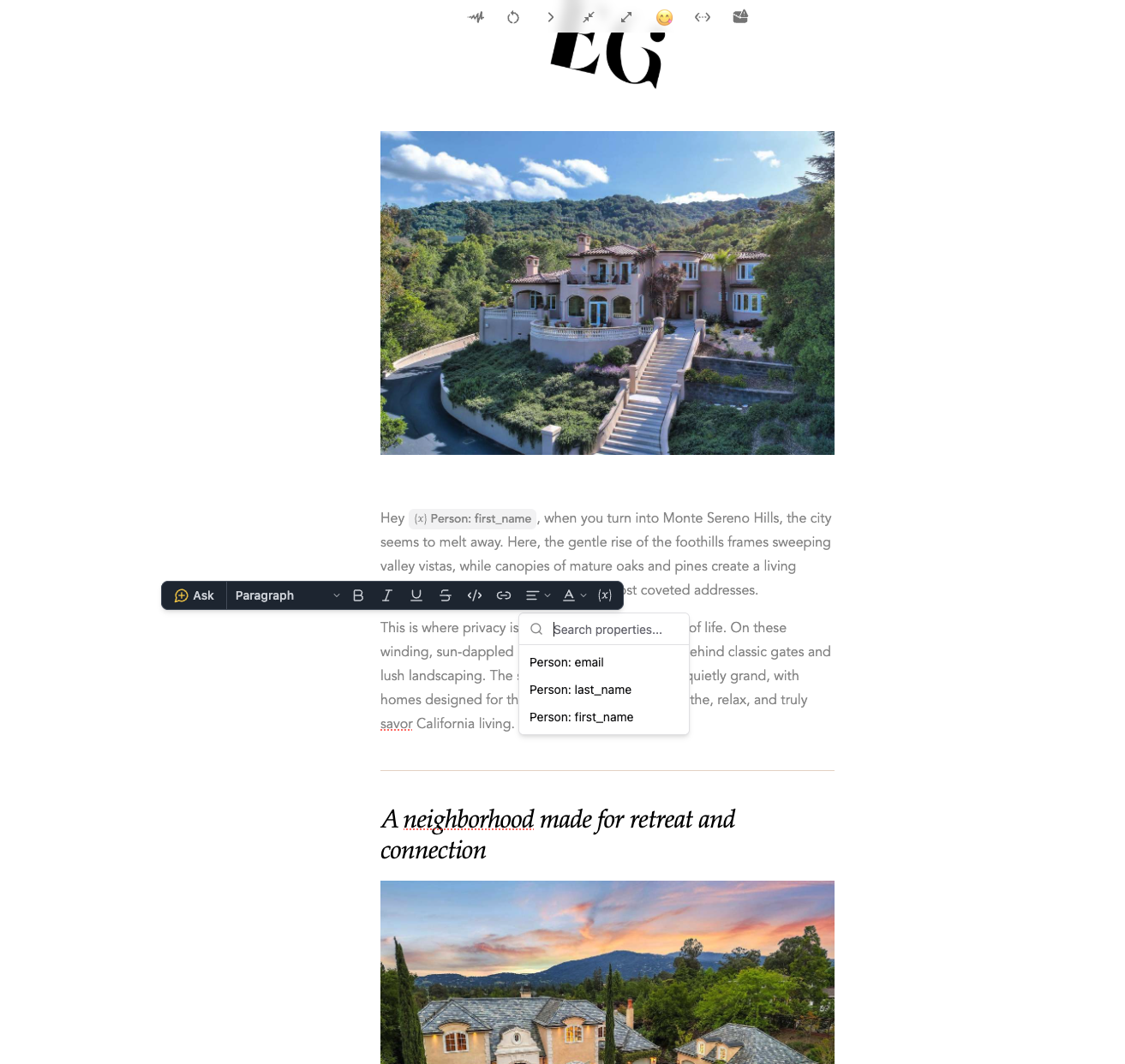
Step 2: Open the Personalization Menu
In the editor toolbar:
Click the {x} icon (personalization button).
A dropdown will appear showing available fields.
You can also use the search bar to quickly find a field.
You’ll see options like:
Person: first_name
Person: last_name
Person: email
Step 3: Preview Your Personalized Email
Click on Publisher, on the top right, and there you can preview how your personalized fields will look. Select an individual email on the left side to see how your email will look when send to different contacts.